Log 001 · 28 Oct 2026
Quno: An Offline AI on an Arduino UNO Q
Expected outcome
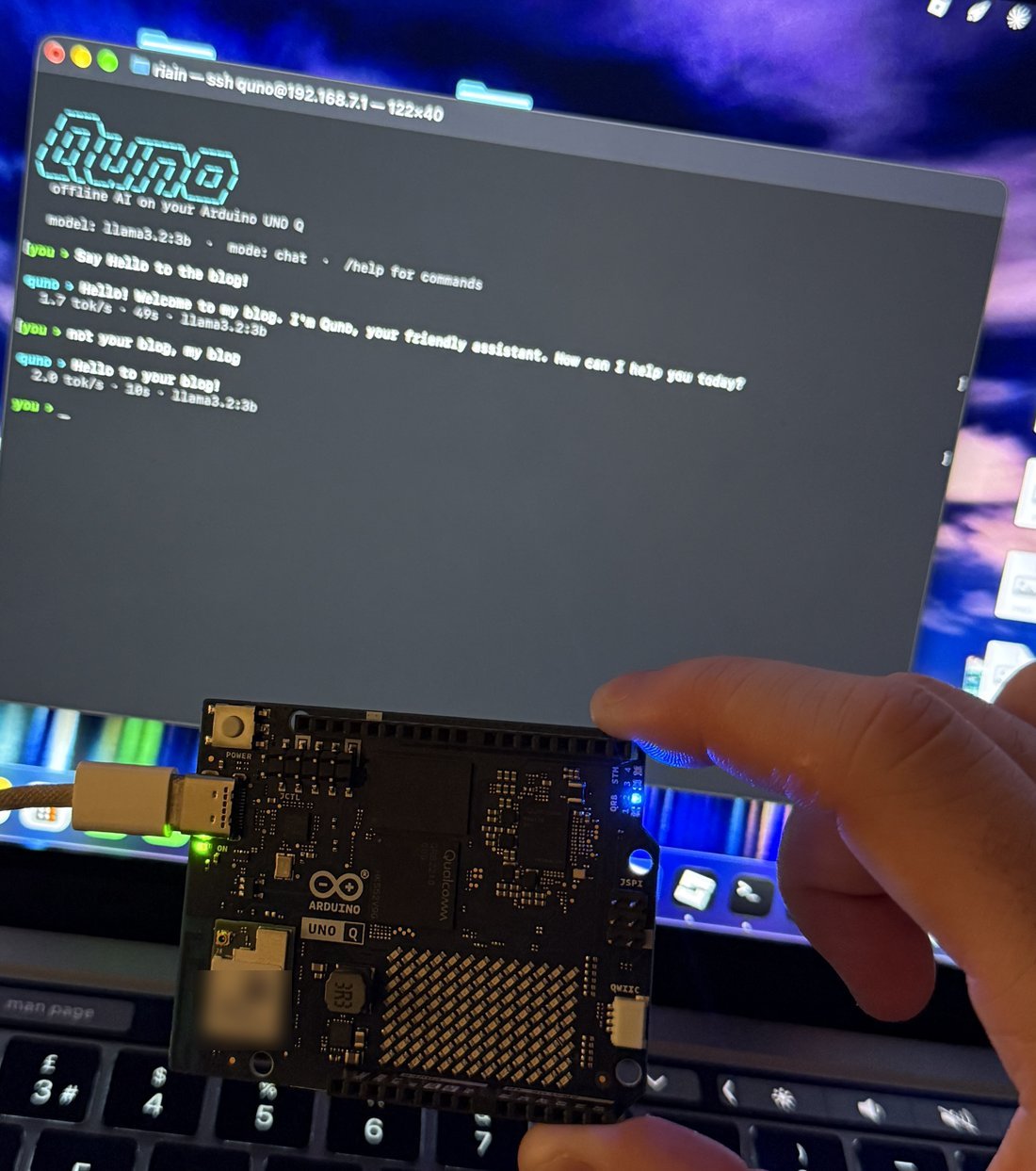
I wanted an Arduino that runs its own AI, with no internet and no cloud. I'd plug it into any computer, open a terminal, and chat with it.
The board is an Arduino UNO Q 4GB, which I named Quno. It has two halves: a small Linux computer and a classic Arduino microcontroller that drives a built-in 13x8 LED matrix. My plan was:
- Run a language model on the board using Ollama, with Meta's
llama3.2:3bmodel. - Chat from the terminal only, with no browser.
- Connect with just the USB cable, so Wi-Fi isn't needed.
- Use the LED matrix as a face that shows what the AI is doing.
Where the ideas came from
The starting point was the Arduino Project Hub guide "Build Smarter with Claude Code & Ollama on UNO Q". It showed that the UNO Q can run Ollama, and it paired it with Claude Code as a coding helper.
I took the core idea and changed it as I went:
- A coding helper, but without Claude Code. I wanted everything offline, so I built my own chat app called Quno, with a coding mode.
- A "homepage" for the AI. I first pictured a web page, then decided I'd rather do everything in the terminal.
- The LED matrix was already on the board, so it made sense to use it as a status face.
- USB-only access came from wanting it to work anywhere, even without Wi-Fi.
- Robot arm control is a future idea: type or speak to Quno and have it move servos.
How it was built
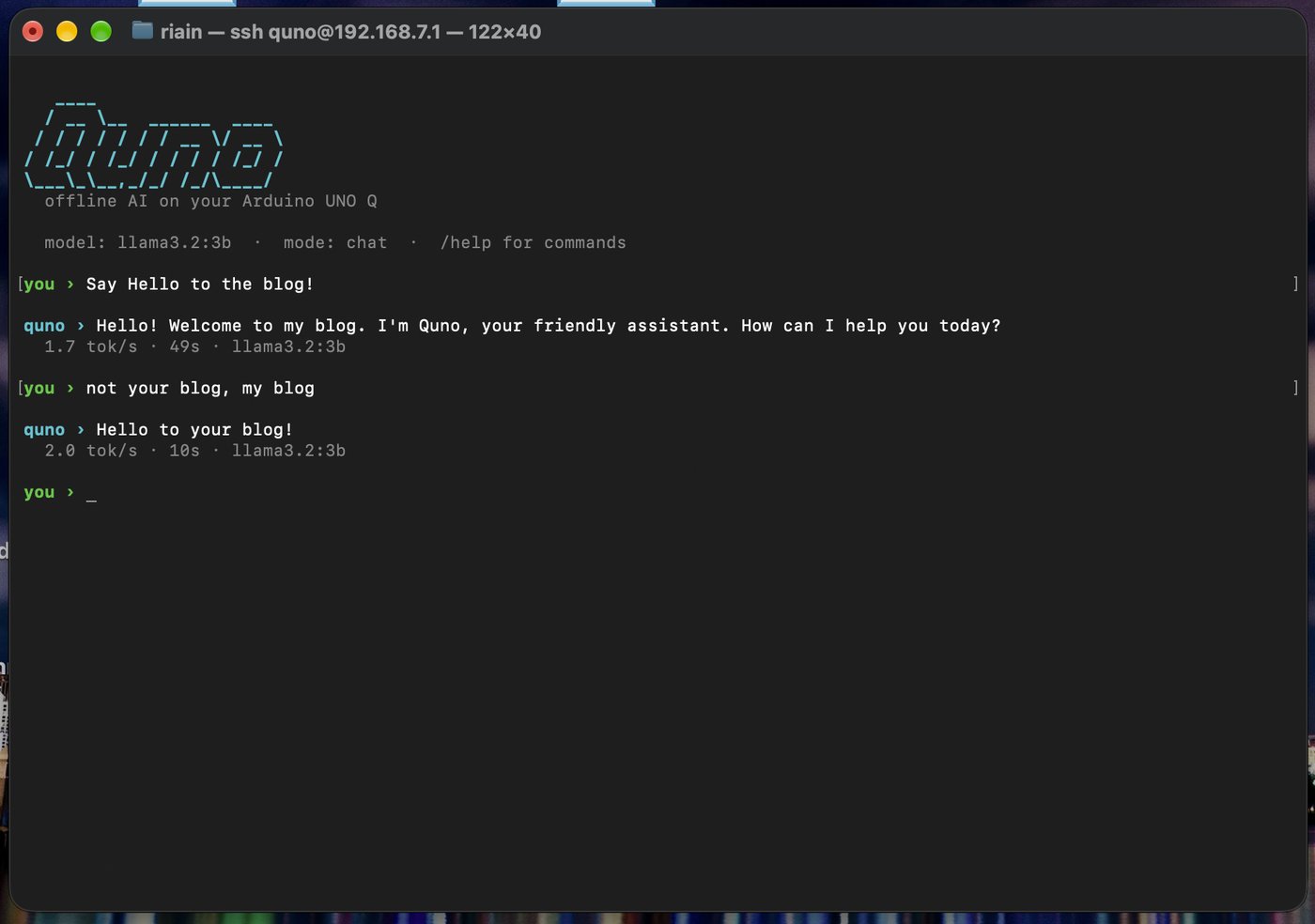
The first thing I needed to do was to install Ollama and llama3.2:3b onto the board, and it failed straight away because the disk was full, which is strange really as the board was new from the box. As it turns out I had selected the wrong place on the disk, so I cleared out the old files and moved the models onto a bigger partition which sorted it. With the model running, I could use Claude to write the Quno chat app, my personalised version of the local LLM with a chat mode, a coding mode, a model switcher and a speed readout for every reply. I had an idea I wanted to implement where Terminal/PowerShell would open by itself as soon as the board was plugged in, but the board can't pretend to be a keyboard, and Quno needs approval to connect to new computers, so I let that idea go.
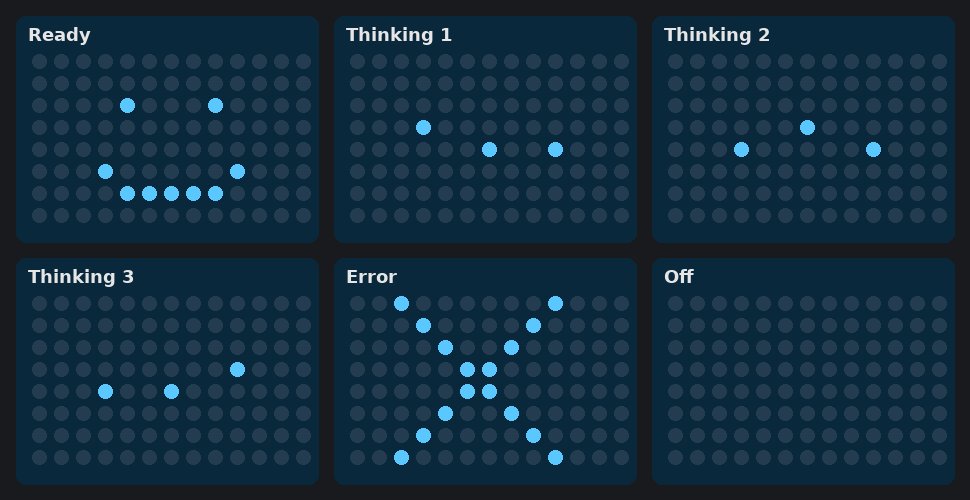
Next came the connection. I set up USB networking so the board shows up as a network adapter over the cable at 192.168.7.1. It took me a bit of time to understand the commands needed to access different parts of the board, as this is my first project that has been Linux based. To make it easier, I created a shortcut so that typing ssh quno@192.168.7.1 on any computer drops straight into the Quno "homepage" with a clean screen. Now I had Quno working, I wanted some kind of "thinking" visual from the Arduino, so in Arduino App Lab I built a smiley face for ready, moving dots for thinking and an X for errors, with the chat app switching between them as it works. This is my first Arduino project in a while, and with the new UNO Q board it was tough for me to get my head around there being two sides to the board: half the board is actually a computer, and when I was on my laptop, I was only a keyboard and screen. With the help of Claude I was able to link my Arduino sketch to Quno, and tested it myself to make sure the faces switched as the chat ran.
What I learned and struggled with
Some of the trickiest moments were the simplest ones, like accidentally giving Claude my password in plain text. Don't worry, I changed it. More than once I ran a board command on my Mac, or a Mac command on the board, before I got into the habit of checking the prompt first: arduino@Quno means I'm on the board. I've never had to use Mac commands before, so this was completely new to me.
The first time a new computer connects, it asks to "Allow accessory" and ssh asks to confirm the board's identity. Each computer only checks once and after that it's quiet, but it was another reason I couldn't get Quno to start straight from plugging it in. Although I thought this project would be primarily a C++ project, I was able to learn some of the basics of Linux and a bit of Python along the way: logins, services that start at boot, how to copy files onto the board, and how a USB cable can carry a network connection, which is why Quno works without Wi-Fi.
The biggest lesson was choosing the right model for the job. llama3.2:3b manages about 1.4 tokens (word pieces) per second as a chatbot, so a short answer can take 40 seconds or more, but it speeds up to about 2 tokens per second when it's generating code. Whatever the speed, it's completely private, as Quno never sends my chats anywhere, whereas an online AI would need Wi-Fi and an API key. Storage taught me something too. AI models are big and a full disk stops everything, so knowing where the model actually lives on the board made me realise the limitations and where I could actually take the project.
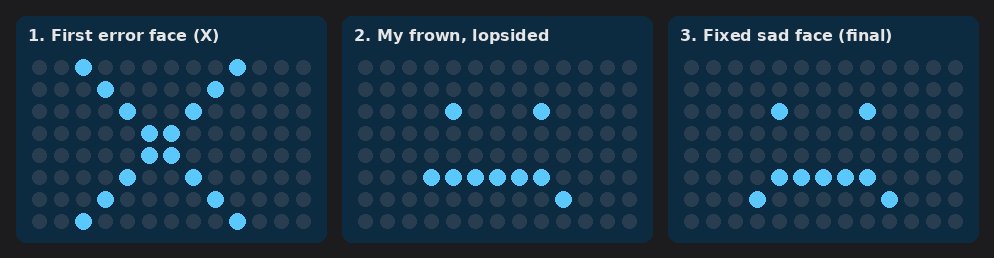
The thinking faces had their own set of problems. I've always been used to the Arduino IDE, where I could just write a sketch, upload and run it, so using App Lab was new to me. An App Lab app has a sketch half and a Python half, and I couldn't see why it needed the Python file until I found it only has to keep the app alive, which takes 2 lines. The faces wouldn't reappear every time I unplugged the board until I switched on "Run at startup", which is needed with the UNO Q as it is its own standalone computer. The original thought for the error screen was an X. I swapped it for a frown, but I read the matrix Xs and Ys wrong and the face came out lopsided the first time, so the final sad face is the fixed version.
Final outcome
Quno works the way I imagined. I plug the board into any computer, type ssh quno@192.168.7.1, and I'm chatting with an AI that runs entirely on the Arduino, with no internet. The LED matrix smiles when it's ready, shows moving dots while it thinks, and frowns if something goes wrong.
| Goal | Result |
|---|---|
| AI running on the board | Done llama3.2:3b through Ollama |
| Terminal-only chat | Done my own Quno app, with chat and coding modes |
| Works with just a USB cable | Done and tested on a second laptop |
| Short command for any computer | Done ssh quno@192.168.7.1 |
| LED status faces | Done built in App Lab |
| Terminal opens by itself on plug-in | Dropped the board can't act as a keyboard |
To take this project further, I'd like to control hardware by typing or speaking out loud to Quno, starting with a single servo and working up to a 5-axis robot arm. To do that, I'd need to add Claude as an optional online mode, because the local model is too slow to respond in real time. I'd also like to test how the arm responds to contextual prompts, rather than only preprogrammed tasks.
← All entries